 L’équipe CueTwin
En bref
- Any screen with a browser can be the teleprompter: a tablet on the lectern, a stage monitor or a TV.
- One person controls everything from the computer and can fix the text mid-event; it changes on every screen.
- High contrast and large type help in bright rooms or when the screen is far away.
- On the Pro plan, you can connect as many screens as you like to the same presentation.
At live events, the speaker can’t stop to find the right page. A browser teleprompter, controlled by someone at the desk or by the speaker, shows the right text at the right time, on as many screens as needed.
Three common setups
| Setup | Speaker’s screen | Who controls it |
|---|---|---|
| Lectern | Tablet or phone on the lectern | The speaker, by voice or with a pedal |
| Stage | Monitor or TV on the floor, facing the speaker | Someone at the desk, on the computer |
| Broadcast | Glass teleprompter in front of the camera | The desk, with the text mirrored |
Step by step
- Prepare the texts on the computerOne script per moment (opening, readings, announcements, thank-yous), kept in a folder for the event.
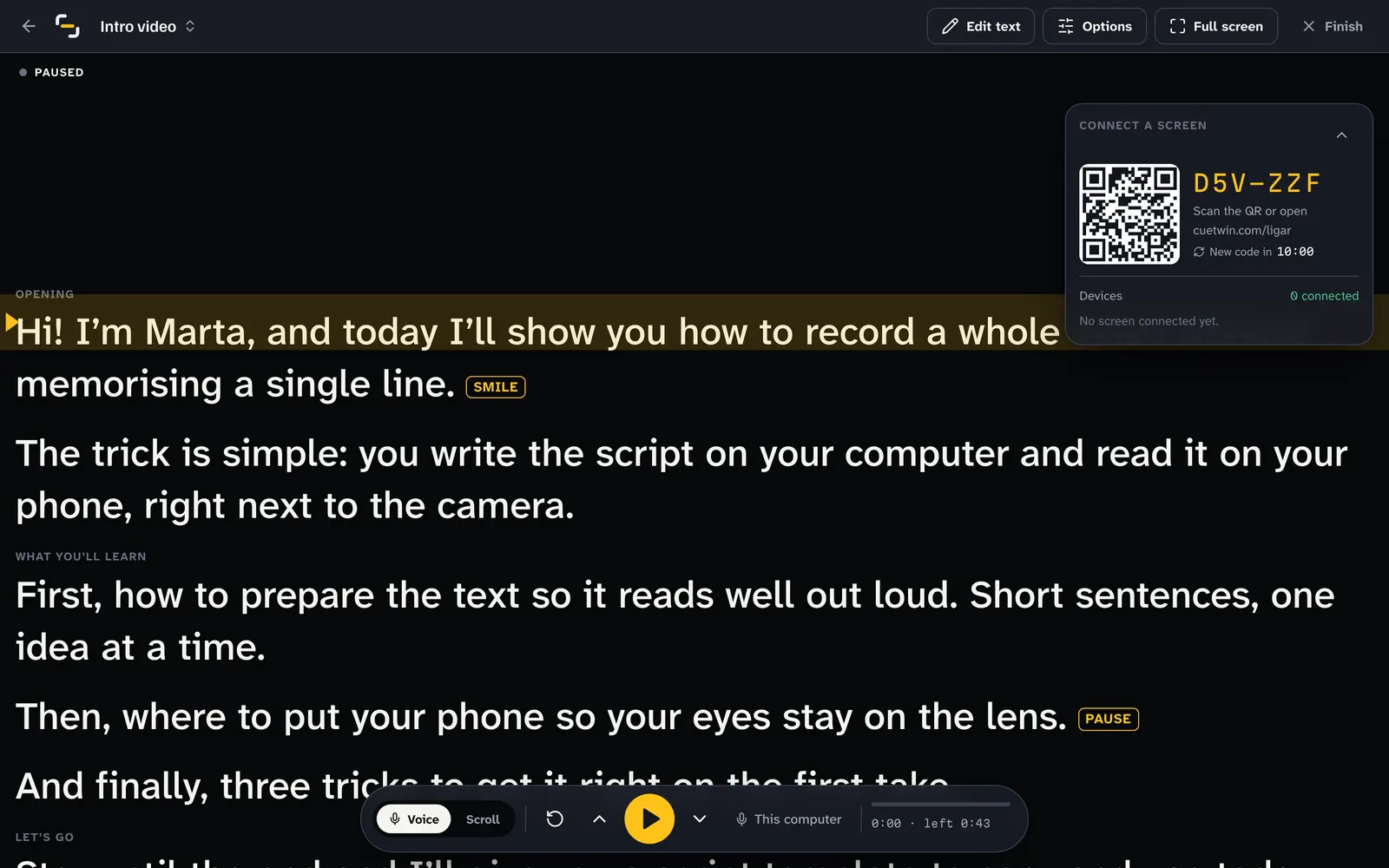
- Press PresentThe QR code and the code appear. Scan it with each screen you’ll use: tablet, phone or a smart TV’s browser.
- Adjust it for the roomLarge type and high contrast (yellow on black) for reading from afar or under stage lights.
- During the eventWhoever is at the computer moves the text on, or turns on Follow my voice and lets the text keep up with the speaker. To move to the next moment, switch script: the screens follow with no new code.
Last-minute changes
Events always change: a name that changed, an extra sponsor, a reading that was dropped. In CueTwin you press Edit text during the presentation, fix it, and the text changes at once on every screen, without losing the speaker’s place.
Astuce : Use [PAUSE] where the speaker waits for music, video or applause. It shows on screen and nobody moves on too early.
In churches and services
- Readings and notices on a tablet at the lectern, in type large enough to read without glasses.
- Sermons or messages with the text following the voice, for those who prefer to speak without paper.
- Services streamed online: the same text on the lectern and on a screen next to the camera.
Voice-follow works in English, Portuguese and other languages, which helps with bilingual services: each text can have its own language.
On-site checklist
- Internet: the computer and the screens talk over the internet. Test the venue’s network beforehand and use mobile data if it’s weak.
- Power: tablets and phones plugged in, with the screen kept on.
- Plan B: the texts printed or in a PDF, in case something fails.
- Rehearsal: at least one full run-through at the venue, under the event lighting.
Questions fréquentes
How many screens can I connect?
One on the free plan. On Pro, as many as you like, all in sync.
Does it work on a smart TV?
If the TV has a modern browser, yes: open cuetwin.com/ligar and type the code. Otherwise, connect a laptop to the TV.
Does it work with glass teleprompters?
Yes. Turn on mirror mode and the text is flipped so it reads correctly on the glass.