 CueTwin-Team

Kurz gesagt
- Any remote that works as a keyboard will do: presentation clickers, ring remotes and Bluetooth pedals.
- By default, Space starts and pauses, the arrows go forward and back, and Home goes back to the start.
- You can change what each button does in Settings.
- No remote? A second phone works, connected with the same QR code.
When you record on your own, getting up to reach the computer ruins the take. A remote in your hand (or a pedal on the floor) lets you pause, go back a sentence or start over without leaving the frame.
Which remotes work
CueTwin reads the keys your computer receives. So any remote that connects as a Bluetooth keyboard works, with no drivers or apps:
- Presentation clickers (the PowerPoint kind): they send Page Down and Page Up.
- Ring or finger remotes made for TikTok and Reels: they usually send arrows or volume keys.
- Bluetooth pedals, for when your hands are busy, for example playing an instrument or doing a demo.
- A regular wireless keyboard, if you sit near the desk.
Tipp: Pair the remote with the computer where CueTwin is open, not with the phone that shows the text. The computer controls every screen.
Which key does what
| Action | Default keys |
|---|---|
| Start and pause | Space, Enter, Play/Pause |
| Forward | Page Down, right arrow, Next track |
| Back | Page Up, left arrow, Previous track |
| Faster | Up arrow, Volume + |
| Slower | Down arrow, Volume − |
| Back to the start | Home |
Change what each button does
- Open SettingsIn CueTwin, go to Settings in the sidebar.
- Pick the actionFor example, Back.
- Press the button on the remoteCueTwin records the key the remote sends. One action can have several keys.
- Try it in a presentationOpen a script, press Present and test each button before you record.
This fixes the most common case: a cheap remote that sends volume or music keys instead of arrows. Just assign those keys to the actions you want.
No remote: use a second phone
If you don’t have a remote, any phone will do. Scan the same QR code on the Present screen and choose Use as remote. You get a big button to start and pause, arrows to go forward and back, and the sentence you are on.
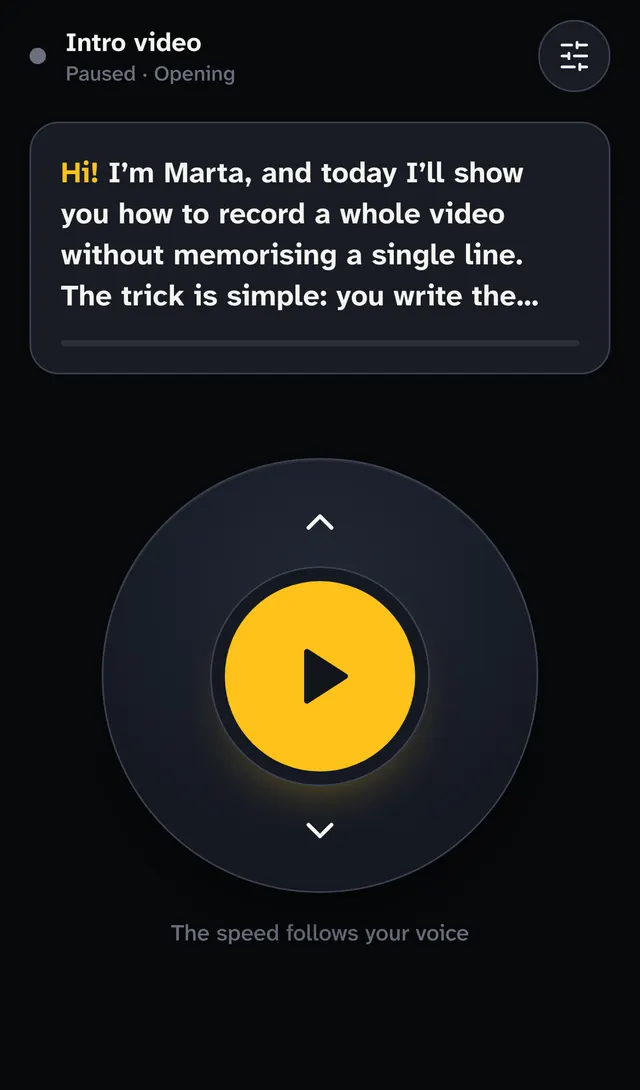
It’s handy when someone helps with the recording: they hold the phone remote and you only have to talk.
With voice, do you still need a remote?
With Follow my voice, the text already moves on its own and waits when you stop. The remote is mostly for the exceptions: restarting a take, skipping a paragraph you decided to cut, or pausing while you show something to the camera.
At a fixed speed, a remote is almost a must: it’s how you match the text to your pace without stopping the recording. Read more about pace in words per minute.
Häufige Fragen
My remote does nothing. What should I check?
Make sure it’s paired with the computer (not the phone) and that the CueTwin window is active. Then, in Settings, press the button to see which key it sends.
Does it work with a TikTok ring remote?
If it connects over Bluetooth as a keyboard or media remote, yes. Assign the keys it sends to the actions in Settings.
Can I use the remote and my voice at the same time?
Yes. Your voice moves the text and the remote is there to pause, go back or start over when you need to.
Does the phone remote need an account?
No. The second phone connects with the QR code, with no app and no account.